Security first. MultiWA collects no data and sends nothing anywhere. No account, no server, no analytics. Your chats stay between you and WhatsApp. How we keep that promise

Several WhatsApp accounts. One window.

A desktop app for people who carry more than one WhatsApp: personal, work, the support line. Each account is a tab, every tab stays signed in.

Download for macOS Download for Windows Free and open source. macOS 12+ (Apple silicon and Intel), Windows 10+.
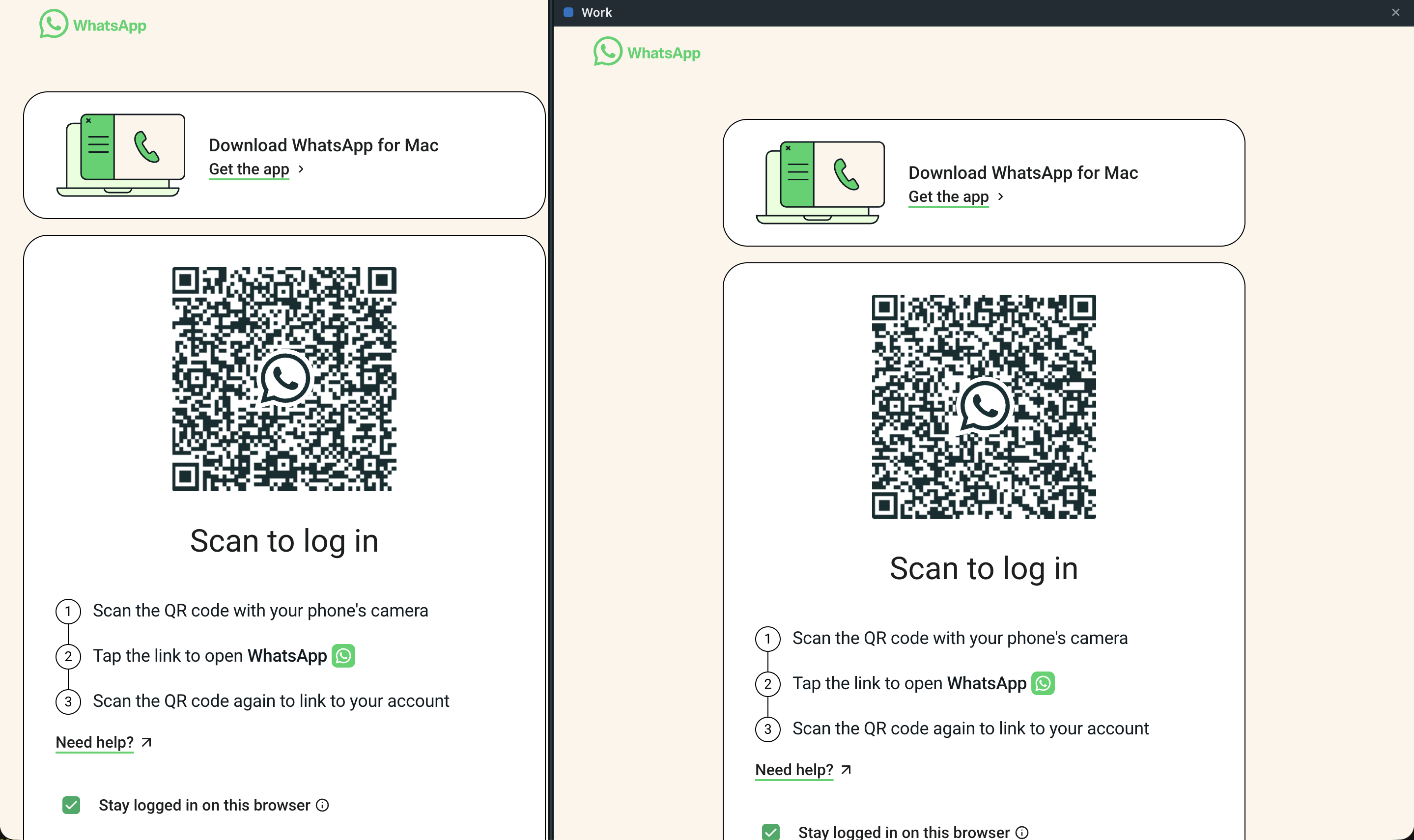
Two WhatsApp Web sign-in screens side by side inside MultiWA: the Personal account on the left and the Work account in the right pane.

What it does

MultiWA is a shell around WhatsApp Web. It adds the things a browser tab cannot give you and changes nothing about WhatsApp itself.

One tab per account
Each tab is its own WhatsApp Web session with separate cookies and storage. Scan the QR code once per tab; every account stays signed in after you quit and reopen.
Tabs you can shape
Drag to reorder, double-click to rename, pick a colour. Unread counts sit on each tab and the total shows on the Dock or taskbar icon.
Two accounts side by side
Right-click a tab and choose Show in right pane, or press ⌘\. Drag the divider to give either side more room.
Several windows
Move a tab to its own window and put it on another screen. Close that window and the tab comes back.
Everything WhatsApp Web can do
Voice notes, voice and video calls, notifications, file attachments and pasting images all work as in the browser. Downloads land in your Downloads folder.
Keyboard first
⌘1–9 switch tabs, ⌃Tab cycles, ⌘T adds an account, ⌘R reloads one. On Windows, Ctrl instead of ⌘.
How it works

  1. Add a tab

    Click +. A fresh, empty WhatsApp Web opens in the new tab, with its own session.

  2. Scan the code

    On your phone, open WhatsApp → Linked devices → Link a device, and scan. That account is now linked to this tab only.

  3. Keep working

    Repeat for every account. Switching tabs is instant; nothing reloads. Closing a tab removes that account from this computer, after asking you.

What MultiWA never does

All of this is enforced in code you can read: the navigation allow-list, the permission policy and the sandboxed view settings live in src/main/security, and a test suite checks that the WhatsApp view never gets a bridge. Details in SECURITY.md.

Download

macOS

Signed and notarized. Pick the Apple silicon or Intel disk image, drag MultiWA to Applications. Updates install themselves.

Get the latest release

Windows

Per-user installer, no admin rights needed. The installer is not code-signed yet, so SmartScreen will ask once: choose More info, then Run anyway.

Get the latest release